



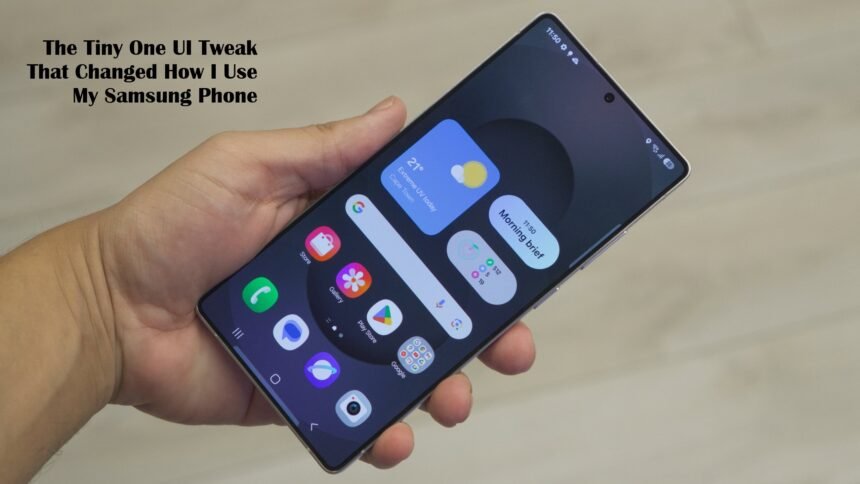
I recently discovered a small but powerful tweak in One UI 8 that has significantly altered how I interact with my Samsung phone. It’s a change that may seem minor at first, but in daily use, it has made my notification experience much more manageable and a lot less stressful.
The Problem: Notification Overload
Like many people, I rely on my smartphone to keep up with work, friends, and personal matters. But that comes with a constant barrage of alerts. Notifications from social media, email, and other apps pile up quickly. My notification shade started feeling like a chaotic jumble, making it hard to find the important messages and dismiss the trivial ones.
Before the tweak, each notification was shown individually, and scrolling through dozens of them was a daily annoyance. I felt like I was constantly playing catch-up and sometimes missing the things I really needed to respond to.
Enter the One UI 8 Solution: Notification Grouping
The change that saved me from this mess: notification grouping, also known as “notification categories.” This feature was improved in One UI 8, and the result is cleaner, more organized notifications. Instead of seeing every single alert separately, notifications are now grouped by app. For example, if I get multiple emails in Gmail, they are bundled under a single, collapsible card. This setup gives me a snapshot of what needs my attention without making me scroll forever.
Why It Makes Such a Big Difference
This tweak has changed my daily workflow in several ways:
1. Faster Triage
At a glance, I can decide which apps’ notifications are worth expanding. That means I spend less time flicking through messages I don’t need to deal with right away.
2. Less Anxiety
Because notifications don’t overwhelm the notification shade, the panel feels more orderly. It’s easier to control how much attention I give to different apps.
3. Cleaner Design
The grouped cards are visually tidier. On my lock screen, I can choose to show notifications as cards instead of just icons or dots. That gives me more context without unlocking my phone.
How to Activate It on Your Samsung Device
If you want to try this feature yourself, here’s how to enable it:
- Open Settings → Notifications → Advanced settings.
- Scroll down to find Manage notification categories (one per app).
- Turn on the setting for individual apps where you want grouping.
- For lock screen style, go to Settings → Notifications → Lock screen, then choose Cards instead of Dots or Icons.
Once set up, the effect is immediate. Your notification shade feels lighter, and you don’t have to dig through dozens of cards every time you pull it down.
Why This Tweak Stands Out
There are many features in One UI that try to improve productivity and usability. But this particular tweak stands out because:
- It targets a very common pain point: notification overload.
- It doesn’t require a third-party app or root. It works with the built-in One UI system.
- It scales well: whether you get ten notifications or a hundred, grouping still keeps things manageable.
Even though the idea of notification categories is not entirely new, One UI 8 has polished the implementation. Before this update, grouping was possible, but it felt inconsistent.
The new design feels smoother and more robust.
What’s Next: One UI 8.5 and Beyond
According to the Android Police article, there is anticipation around One UI 8.5. Among the features expected is notification summaries, which would use on-device AI to condense long messages and present them more smartly.
If that arrives, it could further improve how I deal with long conversations, like group chats or threads where messages pile up. Instead of seeing every long message, I might get a short summary, saving even more time and mental energy.
A Personal Reflection
It’s easy to overlook small tweaks in a major UI update. Big changes new widget styles, AI tools, or redesigns tend to grab headlines. But it’s these modest features that can quietly change how you use your phone in practical, day-to-day ways. This tweak has made my Galaxy feel more personalized.
It feels like One UI is not just a flashy skin: it’s a tool that adapts to how I work. I feel more in control, less overwhelmed, and more efficient whenever I check my phone. If you’re someone who gets a lot of notifications and feels weighed down by them, I strongly recommend giving notification grouping a try. It’s a small change, but one that can make a big difference.